> ## Documentation Index
> Fetch the complete documentation index at: https://docs.traffical.io/llms.txt
> Use this file to discover all available pages before exploring further.
# Parameters in the dashboard
> The parameters list, the two-pane parameter editor, environment overrides, synced parameters, and the parameter detail page.
The **Parameters** page lists every parameter in the project — what exists, what type it is, which [layer](/concepts/layers) it lives in, and whether it's managed in the dashboard or synced from code. This page walks through the UI; for what parameters *are* — types, defaults, namespaces, constraints — see the [parameters concept](/concepts/parameters).
 ## The list
Each row shows:
* **Parameter** — the key (`checkout.button.color`), with its description underneath
* **Type** — `string`, `number`, `boolean`, or `json`
* **Default** — the current base default value
* **Layer** — the layer the parameter belongs to
Two indicators can appear next to a key:
* A **sync icon** — the definition is managed in [`.traffical/config.yaml`](/tools/config-file) and pushed via the [CLI](/tools/cli); its tooltip shows the source file and when it was last synced. See [synced parameters](#synced-parameters).
* An **Orphaned** badge — a synced parameter that was removed from the config file. Re-add it to the config, or archive it with `traffical push --prune`.
Click any row to open the [detail page](#parameter-detail).
### Filtering and views
The filter tabs split the list into **Active**, **Synced**, **Dashboard** (created in the UI), and **Archived**, each with a count. Search matches keys, descriptions, namespace names, and layer names; the namespace dropdown narrows the list to a single namespace.
There are two view modes:
* **Grouped** — parameters under collapsible namespace headers (the default)
* **Flat** — one table, sortable by namespace, key, type, or layer
### Managing namespaces
The gear icon next to the namespace filter opens the namespace manager. From there you can create a namespace, edit its description, and assign an owning team. A namespace can only be deleted when it's empty, and the `main` namespace can't be deleted.
## Creating a parameter
Click **Create Parameter**. Creating and editing parameters requires the parameter write permission — see [roles and permissions](/governance/roles-and-permissions).
The editor opens as a two-pane dialog: a form on the left, a preview on the right.
## The list
Each row shows:
* **Parameter** — the key (`checkout.button.color`), with its description underneath
* **Type** — `string`, `number`, `boolean`, or `json`
* **Default** — the current base default value
* **Layer** — the layer the parameter belongs to
Two indicators can appear next to a key:
* A **sync icon** — the definition is managed in [`.traffical/config.yaml`](/tools/config-file) and pushed via the [CLI](/tools/cli); its tooltip shows the source file and when it was last synced. See [synced parameters](#synced-parameters).
* An **Orphaned** badge — a synced parameter that was removed from the config file. Re-add it to the config, or archive it with `traffical push --prune`.
Click any row to open the [detail page](#parameter-detail).
### Filtering and views
The filter tabs split the list into **Active**, **Synced**, **Dashboard** (created in the UI), and **Archived**, each with a count. Search matches keys, descriptions, namespace names, and layer names; the namespace dropdown narrows the list to a single namespace.
There are two view modes:
* **Grouped** — parameters under collapsible namespace headers (the default)
* **Flat** — one table, sortable by namespace, key, type, or layer
### Managing namespaces
The gear icon next to the namespace filter opens the namespace manager. From there you can create a namespace, edit its description, and assign an owning team. A namespace can only be deleted when it's empty, and the `main` namespace can't be deleted.
## Creating a parameter
Click **Create Parameter**. Creating and editing parameters requires the parameter write permission — see [roles and permissions](/governance/roles-and-permissions).
The editor opens as a two-pane dialog: a form on the left, a preview on the right.
 The form has three tabs — **Basics**, **Constraints**, and **Environments**. The last two carry a count badge showing how many constraint rules and environment overrides are configured, so you can see what's set without switching tabs.
### Basics
* **Parameter name** — the local name. If the namespace isn't `main`, the namespace prefix is shown in front of the input and the helper text shows the full key your code resolves (`checkout.buttonColor`). Keys start with a letter and can contain letters, numbers, dots, underscores, and dashes.
* **Type** — `string`, `number`, `boolean`, or `json`. The type is locked after creation.
* **Default value** — required. When the constraints include allowed values, the free-text input becomes a dropdown.
* **Namespace** — pick an existing namespace or choose **Create namespace...** inline.
* **Layer** — required; every parameter belongs to exactly one layer. See [layers and policies](/dashboard/layers-and-policies).
* **Description** — optional, up to 500 characters.
### Constraints
Constraints validate values before they reach the SDK. They apply to `string` and `number` parameters, and they check both the default value and every environment override — a violating value blocks saving.
* **Range** (`number`) — a minimum, a maximum, or both.
* **Regex pattern** (`string`) — values must match. The **Templates** button opens a searchable list of common patterns (hex color, email, HTTPS URL, semver, and more) so you don't have to write the regex yourself.
* **Allowed values** (both) — restrict the parameter to an explicit set. Adding any switches the value fields from free text to a dropdown.
### Environments
Toggle an [environment](/concepts/projects-and-environments) on and enter a value to override the default there — a lower `timeout` in staging, a test key in development. Overrides sit between the base default and policy overrides: a running policy still wins at resolve time.
### The preview pane
On create, the right pane is a **live preview** that updates as you type: the full resolved key, type, namespace, layer, the default value, and counters for constraint rules and environment overrides. When you edit an existing parameter the pane is headed **Current value**, but it still reflects the form as you change it — only the header differs from create.
The pane also reminds you how resolution behaves: values resolve from the SDK's local cache in sub-milliseconds (no network call per lookup), constraints validate every value, and policy overrides take precedence.
## Editing a parameter
The pencil icon on the detail page opens the same dialog in edit mode. Two differences from create:
* The **type is locked** — it can't change after creation.
* The footer shows **No changes yet** until you actually change something, and the save button stays disabled.
Moving a parameter to a different namespace renames its key (`buttonColor` → `checkout.buttonColor`), and the editor warns you: that's a breaking change for any code resolving the old key.
## Synced parameters
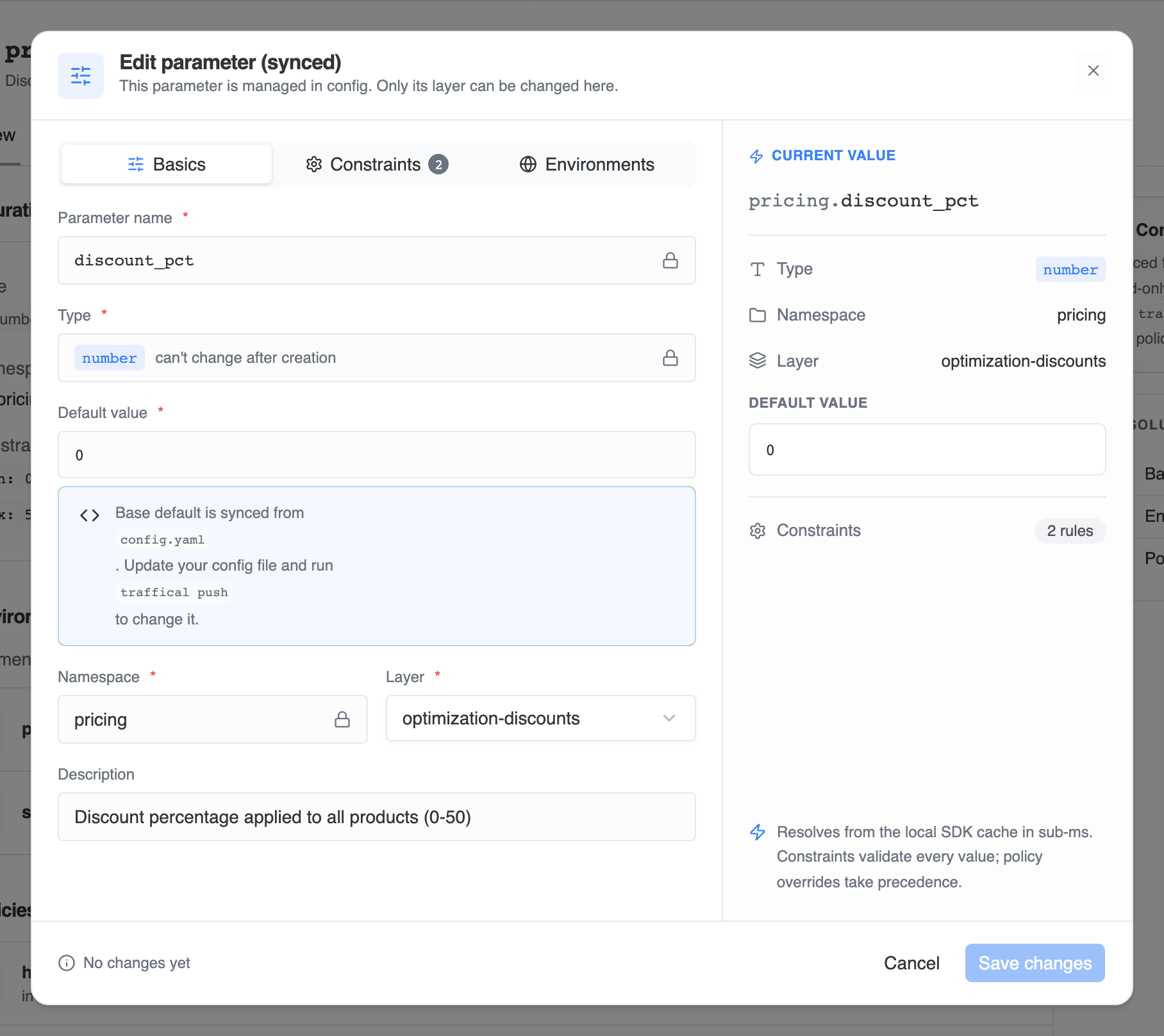
Parameters whose definitions live in [`.traffical/config.yaml`](/tools/config-file) are marked **Synced**, and the dashboard treats the config file as the source of truth. Opening one in the editor shows **Edit parameter (synced)**: the name, type, default value, namespace, description, constraints, and environment overrides are all read-only — the name, type, and namespace carry a lock, and the default value points at the config file it's synced from. Only the **layer** can be changed from the dashboard.
To change anything else, edit the config file and run `traffical push` — the editor shows exactly which file the parameter is synced from.
To move a dashboard-only parameter into code, run `traffical import param ` to write the definition into your config file, then `traffical push` to mark it as synced.
## Parameter detail
Clicking a parameter opens its detail page, with **Overview** and **History** tabs.
The form has three tabs — **Basics**, **Constraints**, and **Environments**. The last two carry a count badge showing how many constraint rules and environment overrides are configured, so you can see what's set without switching tabs.
### Basics
* **Parameter name** — the local name. If the namespace isn't `main`, the namespace prefix is shown in front of the input and the helper text shows the full key your code resolves (`checkout.buttonColor`). Keys start with a letter and can contain letters, numbers, dots, underscores, and dashes.
* **Type** — `string`, `number`, `boolean`, or `json`. The type is locked after creation.
* **Default value** — required. When the constraints include allowed values, the free-text input becomes a dropdown.
* **Namespace** — pick an existing namespace or choose **Create namespace...** inline.
* **Layer** — required; every parameter belongs to exactly one layer. See [layers and policies](/dashboard/layers-and-policies).
* **Description** — optional, up to 500 characters.
### Constraints
Constraints validate values before they reach the SDK. They apply to `string` and `number` parameters, and they check both the default value and every environment override — a violating value blocks saving.
* **Range** (`number`) — a minimum, a maximum, or both.
* **Regex pattern** (`string`) — values must match. The **Templates** button opens a searchable list of common patterns (hex color, email, HTTPS URL, semver, and more) so you don't have to write the regex yourself.
* **Allowed values** (both) — restrict the parameter to an explicit set. Adding any switches the value fields from free text to a dropdown.
### Environments
Toggle an [environment](/concepts/projects-and-environments) on and enter a value to override the default there — a lower `timeout` in staging, a test key in development. Overrides sit between the base default and policy overrides: a running policy still wins at resolve time.
### The preview pane
On create, the right pane is a **live preview** that updates as you type: the full resolved key, type, namespace, layer, the default value, and counters for constraint rules and environment overrides. When you edit an existing parameter the pane is headed **Current value**, but it still reflects the form as you change it — only the header differs from create.
The pane also reminds you how resolution behaves: values resolve from the SDK's local cache in sub-milliseconds (no network call per lookup), constraints validate every value, and policy overrides take precedence.
## Editing a parameter
The pencil icon on the detail page opens the same dialog in edit mode. Two differences from create:
* The **type is locked** — it can't change after creation.
* The footer shows **No changes yet** until you actually change something, and the save button stays disabled.
Moving a parameter to a different namespace renames its key (`buttonColor` → `checkout.buttonColor`), and the editor warns you: that's a breaking change for any code resolving the old key.
## Synced parameters
Parameters whose definitions live in [`.traffical/config.yaml`](/tools/config-file) are marked **Synced**, and the dashboard treats the config file as the source of truth. Opening one in the editor shows **Edit parameter (synced)**: the name, type, default value, namespace, description, constraints, and environment overrides are all read-only — the name, type, and namespace carry a lock, and the default value points at the config file it's synced from. Only the **layer** can be changed from the dashboard.
To change anything else, edit the config file and run `traffical push` — the editor shows exactly which file the parameter is synced from.
To move a dashboard-only parameter into code, run `traffical import param ` to write the definition into your config file, then `traffical push` to mark it as synced.
## Parameter detail
Clicking a parameter opens its detail page, with **Overview** and **History** tabs.
 The overview shows:
* **Configuration** — type, default value, namespace, layer, and constraints. For synced parameters, the default is labeled read-only.
* **Environment overrides** — every environment, with its override value or "Using default".
* **Policies overriding this parameter** — each policy with its current state, linked to its detail page. This is where you see what's actively changing the value in production.
* **Surfaces using this parameter** — the [surfaces](/concepts/surfaces) this parameter is bound to, with a role badge per binding: **read**, **write**, **render**, **decision**, or **side effect**. Bindings describe how a surface uses the value, which feeds risk classification and measurement context for [changes](/concepts/changes).
* **DOM binding** — if the parameter was bound to a page element with the [visual editor](/tools/visual-editor), the CSS selector, property, and URL pattern it's bound to.
The rail on the right pins the **resolution order** — base default, then environment override, then policy override (highest) — so you always know which value wins. Synced parameters get an extra config-as-code card pointing at the source file.
The **History** tab is the parameter's change history: who changed what, and when.
## Bulk actions
Select parameters with the row checkboxes and a floating action bar appears. You can:
* **Move to Layer**
* **Change Namespace** (renames the keys)
* **Archive** — or **unarchive**, when you're in the Archived view
Every bulk action shows a preview before executing: which parameters will be updated, which are blocked and why, and any warnings. A parameter referenced by a **running** policy is blocked from moving, archiving, or changing namespace; references from draft or paused policies only produce a warning. Synced parameters can't be archived (unless orphaned) or change namespace from the dashboard — that's managed in config.
## Archiving
Archiving hides a parameter from the active list without deleting it. Switch the filter to **Archived** to see archived parameters and restore them at any time.
For synced parameters, archiving happens from code: remove the parameter from your config file and run `traffical push --prune`.
## Next steps
Types, defaults, namespaces, constraints.
Where you configure experiments on top of parameters.
Binding parameters to the surfaces that consume them.
Manage parameter definitions as code.
The overview shows:
* **Configuration** — type, default value, namespace, layer, and constraints. For synced parameters, the default is labeled read-only.
* **Environment overrides** — every environment, with its override value or "Using default".
* **Policies overriding this parameter** — each policy with its current state, linked to its detail page. This is where you see what's actively changing the value in production.
* **Surfaces using this parameter** — the [surfaces](/concepts/surfaces) this parameter is bound to, with a role badge per binding: **read**, **write**, **render**, **decision**, or **side effect**. Bindings describe how a surface uses the value, which feeds risk classification and measurement context for [changes](/concepts/changes).
* **DOM binding** — if the parameter was bound to a page element with the [visual editor](/tools/visual-editor), the CSS selector, property, and URL pattern it's bound to.
The rail on the right pins the **resolution order** — base default, then environment override, then policy override (highest) — so you always know which value wins. Synced parameters get an extra config-as-code card pointing at the source file.
The **History** tab is the parameter's change history: who changed what, and when.
## Bulk actions
Select parameters with the row checkboxes and a floating action bar appears. You can:
* **Move to Layer**
* **Change Namespace** (renames the keys)
* **Archive** — or **unarchive**, when you're in the Archived view
Every bulk action shows a preview before executing: which parameters will be updated, which are blocked and why, and any warnings. A parameter referenced by a **running** policy is blocked from moving, archiving, or changing namespace; references from draft or paused policies only produce a warning. Synced parameters can't be archived (unless orphaned) or change namespace from the dashboard — that's managed in config.
## Archiving
Archiving hides a parameter from the active list without deleting it. Switch the filter to **Archived** to see archived parameters and restore them at any time.
For synced parameters, archiving happens from code: remove the parameter from your config file and run `traffical push --prune`.
## Next steps
Types, defaults, namespaces, constraints.
Where you configure experiments on top of parameters.
Binding parameters to the surfaces that consume them.
Manage parameter definitions as code.