


The Changes list
The Changes list
At the top of the list, four stat cards summarize your change process over a trailing window: Time to first traffic (median from creation to the first traffic-bearing phase starting), Clean activation rate (phase starts with no failed or warned readiness checks), Guardrail catch rate (blocking breaches followed by a pause or revert), and Decision-log completeness (transitions citing evidence). Hover a label for the exact definition. Below the cards, two panels appear when relevant: a decision queue listing changes that are Ready for a transition or Awaiting approval, and a needs-attention panel for changes with degraded health, an active guardrail breach, or unfinished setup. Both link straight to the change. Filter the list with the chips above the table:
Each row shows the change name, its current phase, a Draft or Archived badge where applicable, a health badge, the primary metric’s relative lift, the pending transition (with the approving role when one is required), parameter and policy counts, the primary surface, the owner, and a suggested next action. Rows needing attention sort to the top.
Click New change to start the wizard. Creating changes requires the
changes:write permission — see Roles and permissions.
The New Change wizard
The wizard walks six steps. You can jump back to any step you have already passed; forward jumps stop at the first step that fails validation.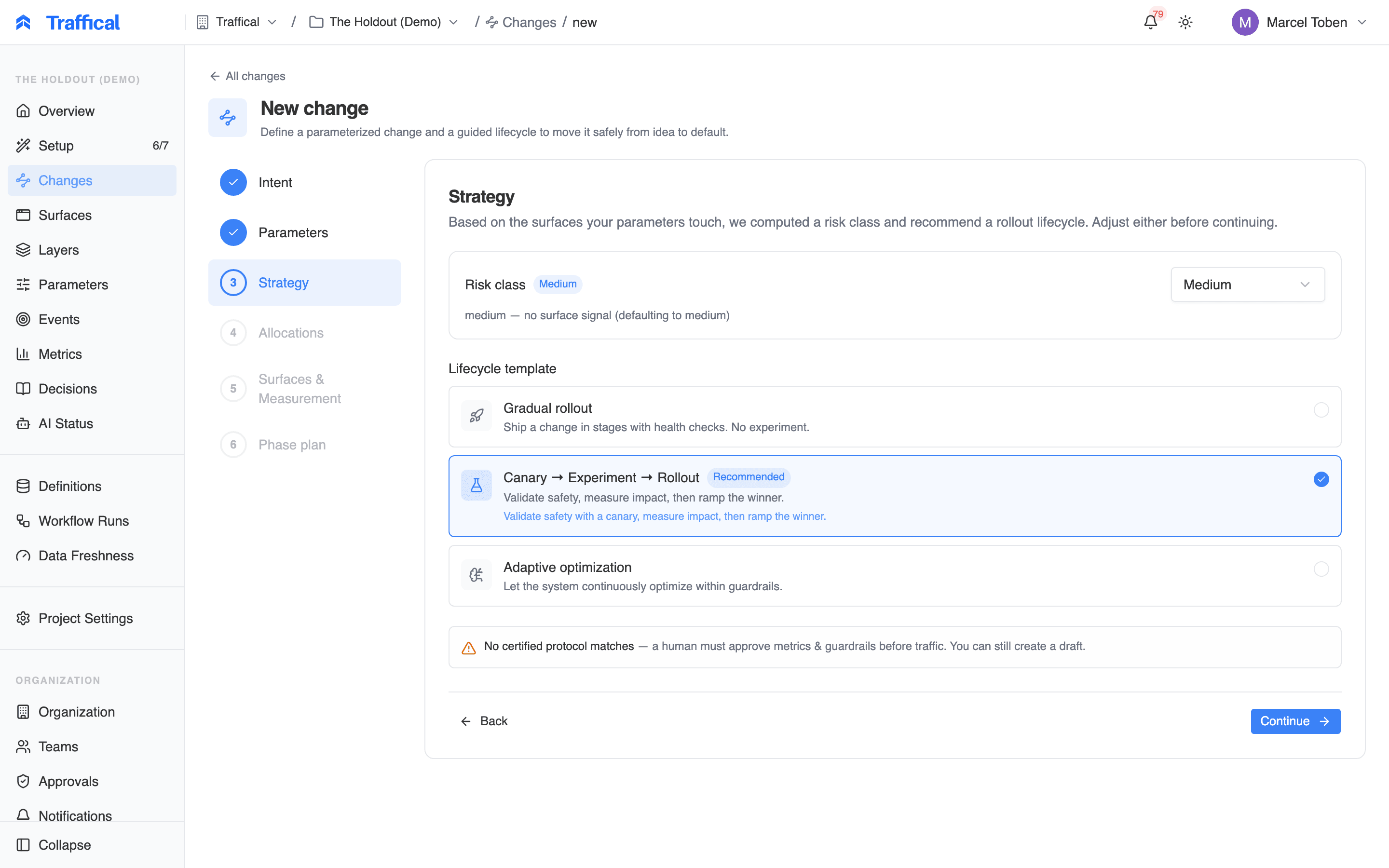
The wizard's Strategy step
1
Intent
Name the change and describe the outcome you’re after. The intent anchors the change through every phase — it shows up on the detail page and becomes the description of each phase’s executing policy.
2
Parameters
Select the typed parameters the change controls. Filter by surface to narrow a long list — selections persist when you change the filter, so a change can span surfaces. If your selection spans multiple layers you can still save a draft, but the parameters must live in a single layer before a phase can start.
3
Strategy
Based on the surfaces your parameters touch, Traffical computes a risk class (low, medium, high, or critical) with a written reason, and recommends a lifecycle template — marked with a Recommended badge in the template list.You can override the risk class, but lowering it below the computed baseline requires a written reason. The override is tied to your current parameter and surface selection — change either and the risk is re-derived.A measurement teaser previews coverage: either N certified protocols will apply with the derived measurement template, or a warning that no certified protocol matches — meaning a human must approve metrics and guardrails before any traffic. You can still create the draft either way. See Measurement protocols.
4
Allocations (Define values)
Set the values per allocation. The shape follows the lifecycle template: an A/B lifecycle locks control to the current default and gives you a single treatment; an adaptive lifecycle lets you add and remove allocations (starting split is even); a gradual rollout sets the new values against the current defaults.For lifecycles with a canary or experiment phase, a Traffic section appears — with a Canary traffic slider when the lifecycle leads with a canary, and an Experiment allocation slider when it includes an experiment phase. The default Canary → Experiment → Rollout template shows both; a gradual rollout shows only the canary slider; adaptive optimization shows neither.
- Canary traffic — the initial traffic share per allocation. Bounds default to 1–10%; project guardrails can narrow them. The canary is capped at the experiment allocation.
- Experiment allocation — the share of the layer reserved for the test. It’s auto-sized to reach significance within the project’s target duration (14 days by default), from your measured traffic and the primary metric’s baseline. The helper text tracks the slider live, projecting days to significance, and flags when the recommendation was clamped to a guardrail. Drag the slider to override — your value sticks.
5
Surfaces & measurement
Confirm the primary surface (pre-filled from your parameters’ bindings — the surface the change decides or writes on outranks one it merely renders) and toggle any additional impacted surfaces. If the confirmed surfaces raise the computed risk, a nudge offers to switch to a canary-first lifecycle.Below, the resolved measurement plan preview lists the matched protocols with versions, the primary and secondary metric counts, and the guardrail count. Draft (uncertified) protocols are flagged as a measurement risk. See Surfaces.
6
Phase plan
Review the planned phases. Gating banners appear here when they apply:
- Parameters span multiple layers — consolidate to one layer before starting traffic.
- No certified protocol matches — review and approve a measurement plan on the change page before starting traffic.
- Critical risk — starting traffic will require human approval on the change page. This one appears only when a certified protocol matches — the missing-protocol banner takes precedence.
The change detail page

Change detail — Overview tab
?tab=:
Overview
The lifecycle rail shows every phase and where the change stands. When a transition is pending, a hero card summarizes it — what would move, how many readiness checks pass, and whether approval is needed — with the button that opens the transition console. An active blocking-guardrail breach surfaces as a banner with the automatic action taken (pause, revert, or none) and a shortcut to the evidence. Below that: the current phase summary with live metrics, the latest evidence record, per-phase cards, what’s changing (parameters and surfaces), and a measurement-plan summary.Plan
The resolved measurement plan in full: primary and impacted surfaces, the source protocols with versions and certification state, primary and secondary metrics, and guardrails with their thresholds and severity. For blocking guardrails, the card states the armed action on the current phase — pause, revert, or readiness-blocking only. Two situations ask for input:- Multiple primaries — several certified protocols each declared a primary metric. This is the one case that blocks approval: Approve plan stays disabled until you pick a single primary objective (the rest demote to secondary).
- No primary at all — no protocol contributed a primary metric. You can still approve the plan as-is; the Create a basic plan card is there to fill the gap, letting you pick a primary metric and optional guardrails from the project’s metric definitions and re-resolve.
changes:operate: Resolve again re-runs resolution, Approve plan approves the result.
Evidence
A stream of durable, decision-ready snapshots — experiment results, canary and rollout health, data quality — grouped by the phase they belong to. Filter with the All, Results, Health, and Data quality chips: Results adds a per-metric allocation comparison, Health adds the readiness checks with pass/warn status. Evidence is materialized at each phase transition, or on demand with Refresh evidence. The rail tracks policy health and the analysis runs behind each refresh.Decisions
Every decision on the change — system, agent, and human — merged across the linked phase policies, with a Transitions chip to isolate phase transitions. Decisions cite the evidence they relied on. Use Annotate to record a change- or phase-scoped note (title, reason, tags) in the log.Execution
The machinery underneath: the policy executing each phase (linked to its policy page), a live bucket map of the layer showing this change’s slice next to other policies, and a reservations table. It’s computed from active policies — useful for debugging placement.Settings
Edit the name, owner, and tags. Phase automation sets, per traffic-bearing phase, what the change monitor may do on the change’s behalf:
See Approvals and autonomy for how these interact with approval gates. The danger zone offers Archive change (pauses all running phase policies) and Abandon change (also releases the policies’ bucket space; requires a reason, recorded in the decision log).
The transition console

The transition console
changes:operate permission — without it the transition button and console don’t appear.
Readiness checks. The console shows each check with pass, warn, or fail status and a passing count. Failures explain themselves and block the action.
Plan options. For transitions that start traffic, the console offers placements:
- Run now — the requested traffic fits the layer as-is.
- Run smaller — the largest free contiguous gap, when the full request doesn’t fit.
- Schedule after — informational: space frees up on a known release signal.
- Overlay — run at top priority over existing policies. Masked policies stop serving in the overlapping buckets. If any masked policy is actively measuring, you must tick an explicit acknowledgment that its cohorts will be starved before the action enables.
- Plan approved — the transition proceeds normally.
- Low-risk plan built entirely on certified protocols with no unresolved risks — the console notes it will be approved automatically when traffic starts.
- Anything else — the start is blocked with a Measurement plan not approved panel. Use Review & approve in Plan tab to approve, then return. An optional measurement note can be attached to the decision record either way.
The Changes surface is enabled per organization. If you don’t see Changes in the sidebar, it isn’t enabled for your organization yet — contact your Traffical representative to turn it on.