

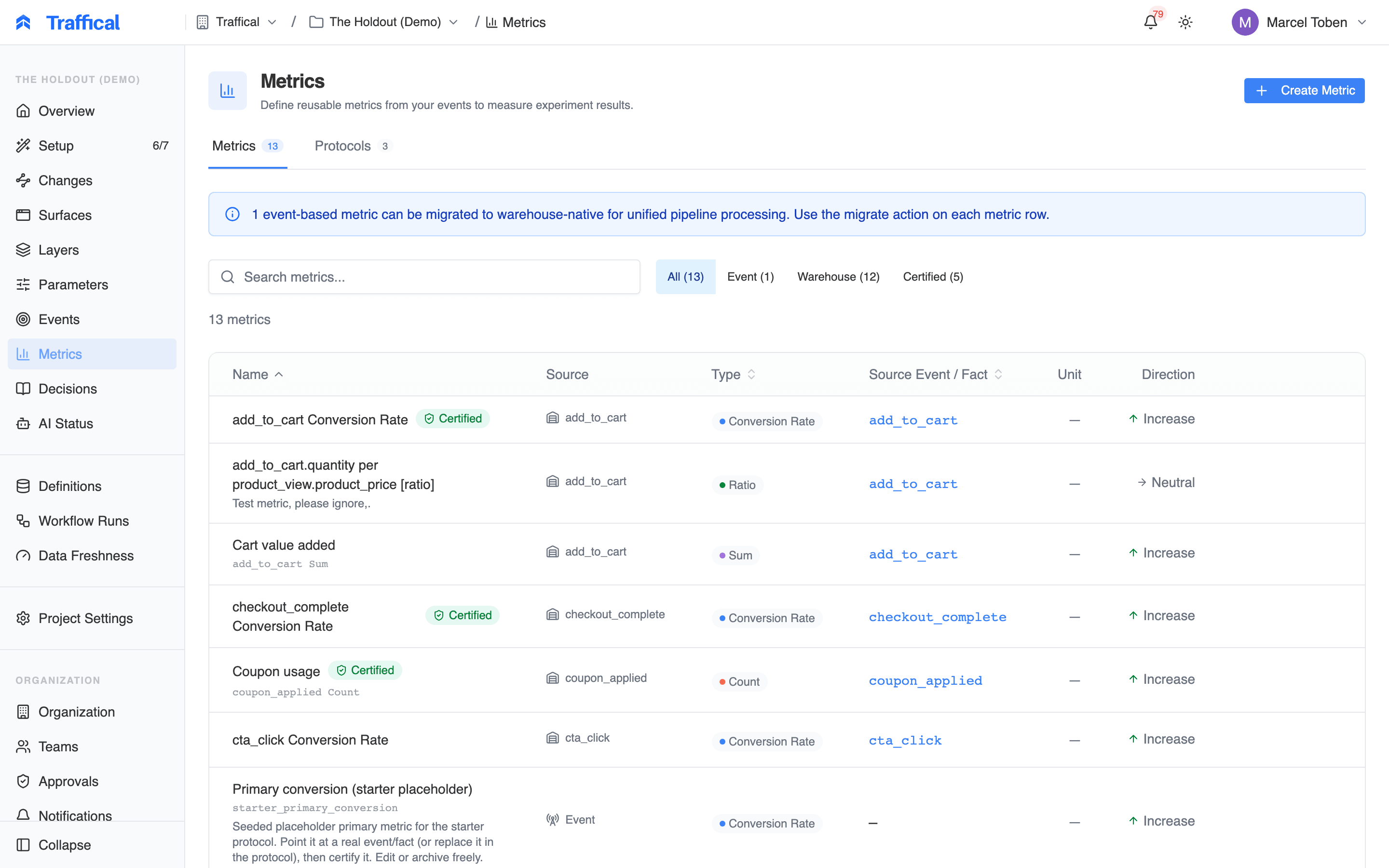
The metrics catalog
The metrics list
Each row shows the metric’s name (plus its display alias and any Synced or Certified badge), its source — a Traffical-native event or a warehouse fact, linked to its definition — its type, unit, and desired direction. Click a row to open the detail page. Filter chips narrow the list by source (Event / Warehouse), by Synced (config-as-code metrics), by Certified, or show Archived metrics, which are hidden by default. Certified and synced metrics have no edit or delete actions in the list — they’re read-only until uncertified or changed in your config file. On Traffical-native projects, event-based metrics also show a one-click Migrate to warehouse-native row action (a banner above the list counts the candidates) — migrating re-links the metric to its matching fact so it’s processed on the unified pipeline, without changing what it measures.Creating a metric
Click Create Metric. The dialog puts configuration on the left and a live preview — including the auto-generated name — on the right.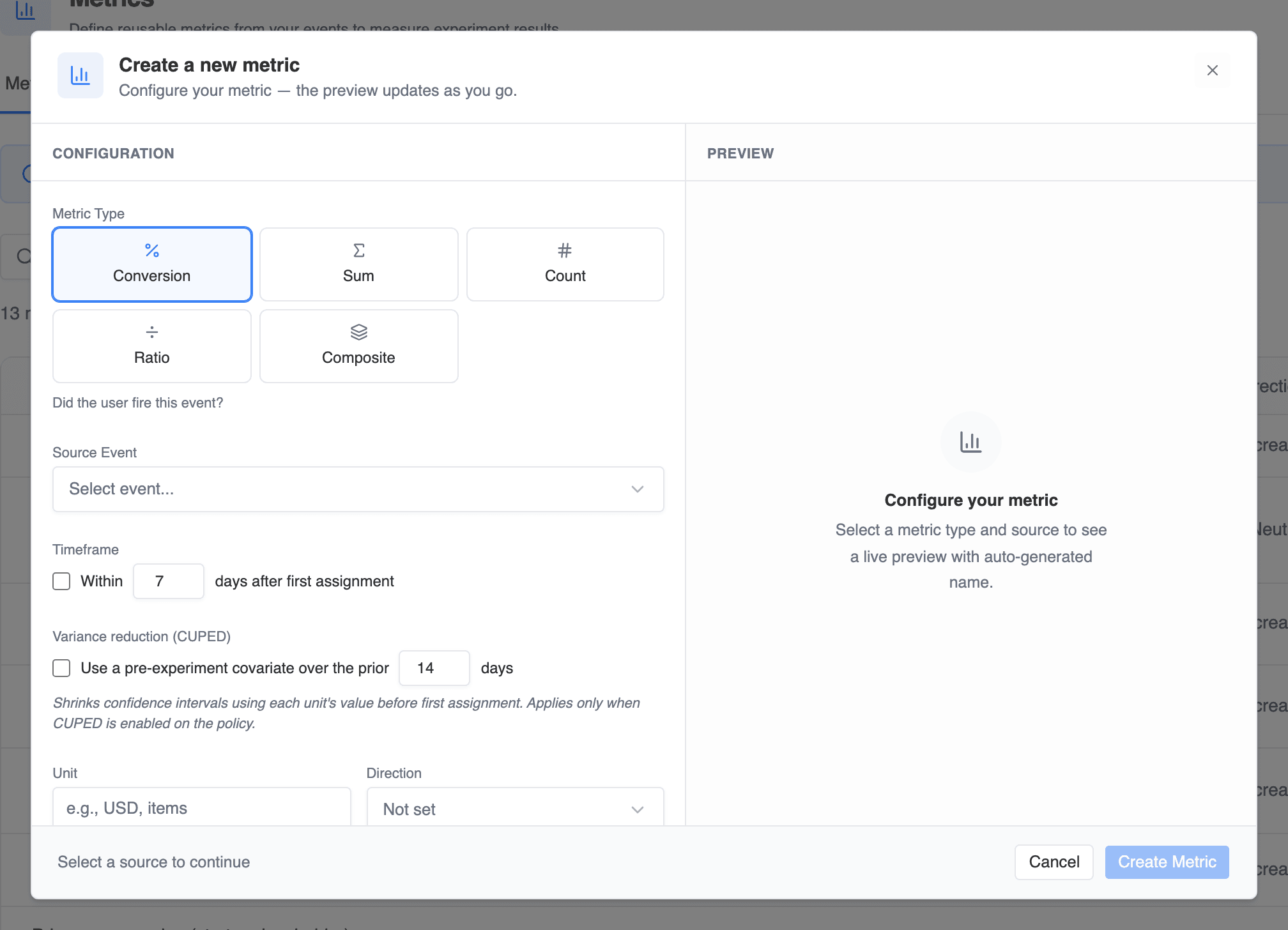
Create metric dialog with live preview
Then pick the source. On Traffical-native projects that’s an event; on warehouse-connected projects it’s a fact definition — SDK-tracked events appear in the fact list with an SDK Event badge. For Sum, also choose the measure to total; event-sourced metrics default to the event’s value.
Ratio metrics
A ratio compares two facts, so both sides come from the warehouse. The fact and measure you picked above are the numerator; the Denominator panel takes a second fact and measure. The auto-generated name spells out both sides —purchase.revenue per click.sessions [ratio] reads as “revenue per session.” Standard errors use the delta method — see Ratio metrics.
Composite metrics
A composite is a weighted sum of components — the way to express a net objective like revenue minus returns cost. Instead of a single source, you build a list of component rows: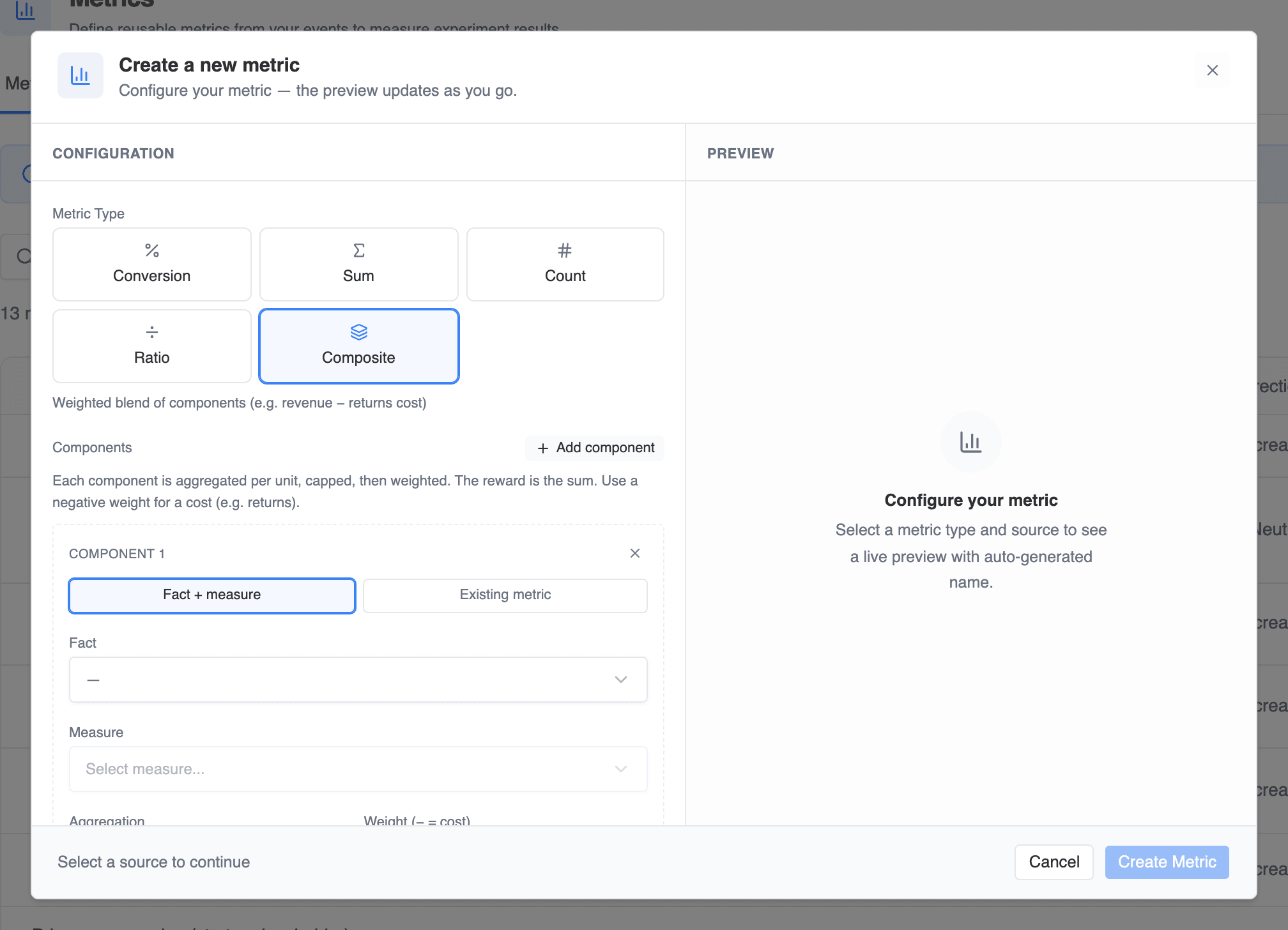
Composite component rows
- Aggregation — binary (fired ≥ 1 → 0/1), count, or sum of a measure.
- Weight — a negative weight subtracts; that’s how a cost component works.
- Cap (optional) — clamps each unit’s value before weighting, so one whale can’t dominate the reward.
- Window (optional) — a per-component attribution window, counting only value from X to Y days after first assignment.
Names
Metric names follow a convention —orders.order_total [sum], purchase per click [ratio] — and are generated as you configure, locked by default. Click Edit next to the name to customize it, Reset to return to the convention. Duplicates get a #2 suffix; filters add a qualifier like checkout/country=de. An optional display alias shows a friendlier label in the UI without changing the name.
Filters, timeframe, and direction
- Filters restrict which events count (e.g. only
status = completed). Available columns come from properties marked as dimensions on the event’s property schema, or from the fact’s dimension columns. Operators: equals, not equals, in, not in. - Timeframe limits attribution to the first N days after first assignment.
- Unit is a display label (
USD,items). - Direction declares whether the metric should increase or decrease — it colors results and sets the default guardrail direction when the metric is attached as one. Warehouse measures can carry a preferred direction, which pre-fills this field.
- Default MDE (%) is the smallest change worth acting on — the default measurement-progress target wherever this metric is attached.
Variance reduction (CUPED)
On Conversion and Sum metrics you can enable a pre-assignment covariate: the metric’s own value over a lookback window (default 14 days) before each unit’s first assignment. It shrinks confidence intervals and takes effect only when CUPED is also enabled on the policy or project. CUPED isn’t available for count or ratio metrics.Certification
Certifying a metric marks it as a trusted, validated definition — the standard your team measures with. Click Certify on the metric’s detail page. A certified metric:- becomes read-only, so the definition can’t drift under running policies, and
- is eligible for measurement protocols — protocols pick from certified metrics only, and a protocol can itself only be certified when every metric it references is certified. That certified coverage is what lets low-risk changes auto-approve their measurement plans.
UNCERTIFY, since colleagues and running policies may rely on the definition. Once uncertified, the metric becomes editable again.
Metric definitions can also live as config-as-code in a metrics file pushed via the CLI — see the config file reference. Synced metrics show a Synced badge, are read-only in the dashboard, and change (including their
certified flag) only through your file and the next push.Attaching metrics to policies
On a policy’s detail page, open the metrics panel and click Attach Metrics. The dialog is a catalog and a cart: browse and multi-select on the left (search with ⌘K, filter by type, hide already-attached), and manage the attached set on the right, grouped by role.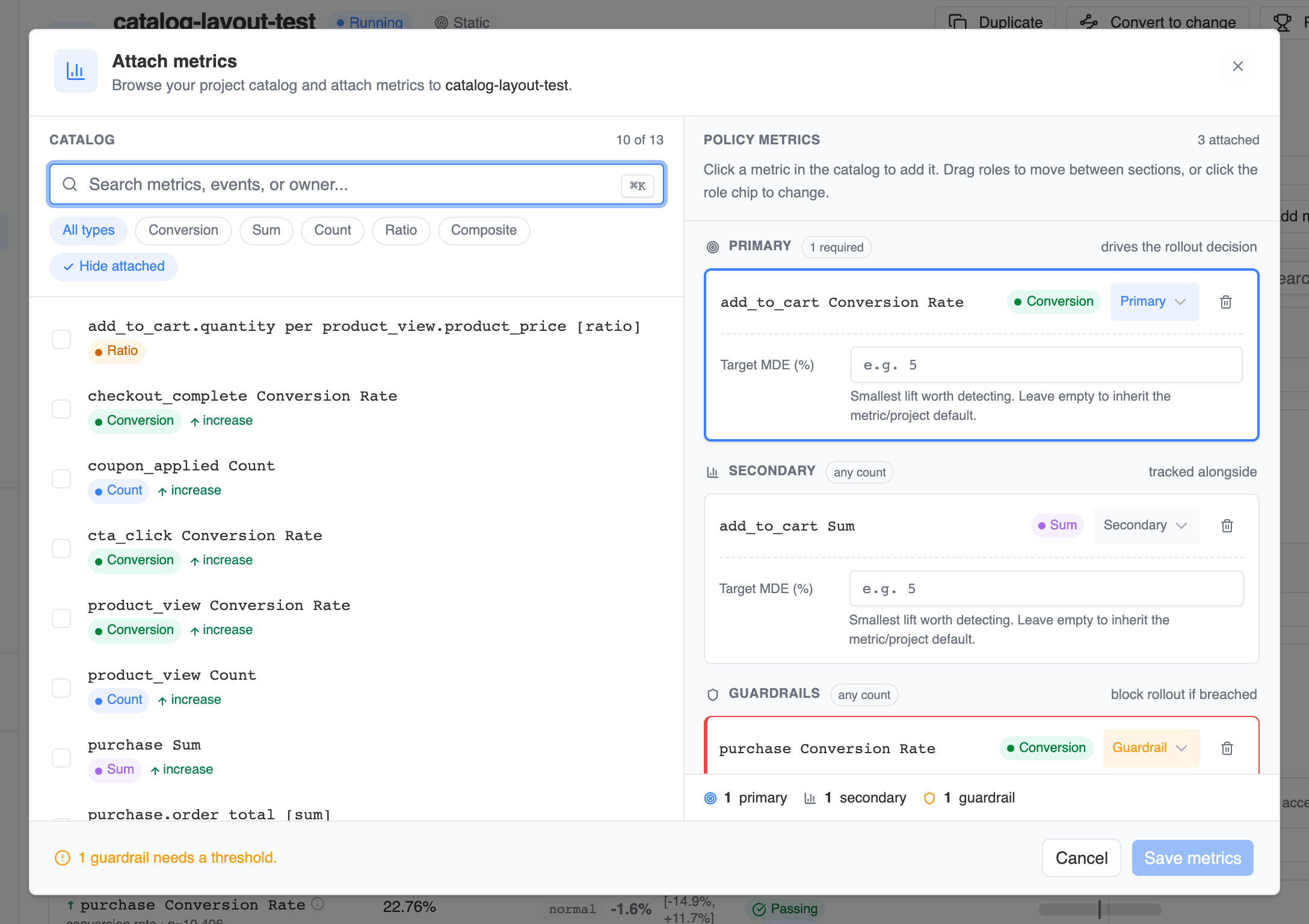
Attach metrics to a policy
- Primary — exactly one, required whenever metrics are attached. It drives the decision. Promoting another metric demotes the current primary to secondary.
- Secondary — any number, tracked alongside without driving decisions.
- Guardrail — any number. Each needs a threshold (above or below a value, defaulted from the metric’s desired direction); a breach blocks the rollout.
Reading the results scorecard
The policy’s scorecard lists every attached metric grouped by role, with per-allocation lift, confidence interval, and a significance verdict; guardrails additionally show a status chip against their threshold.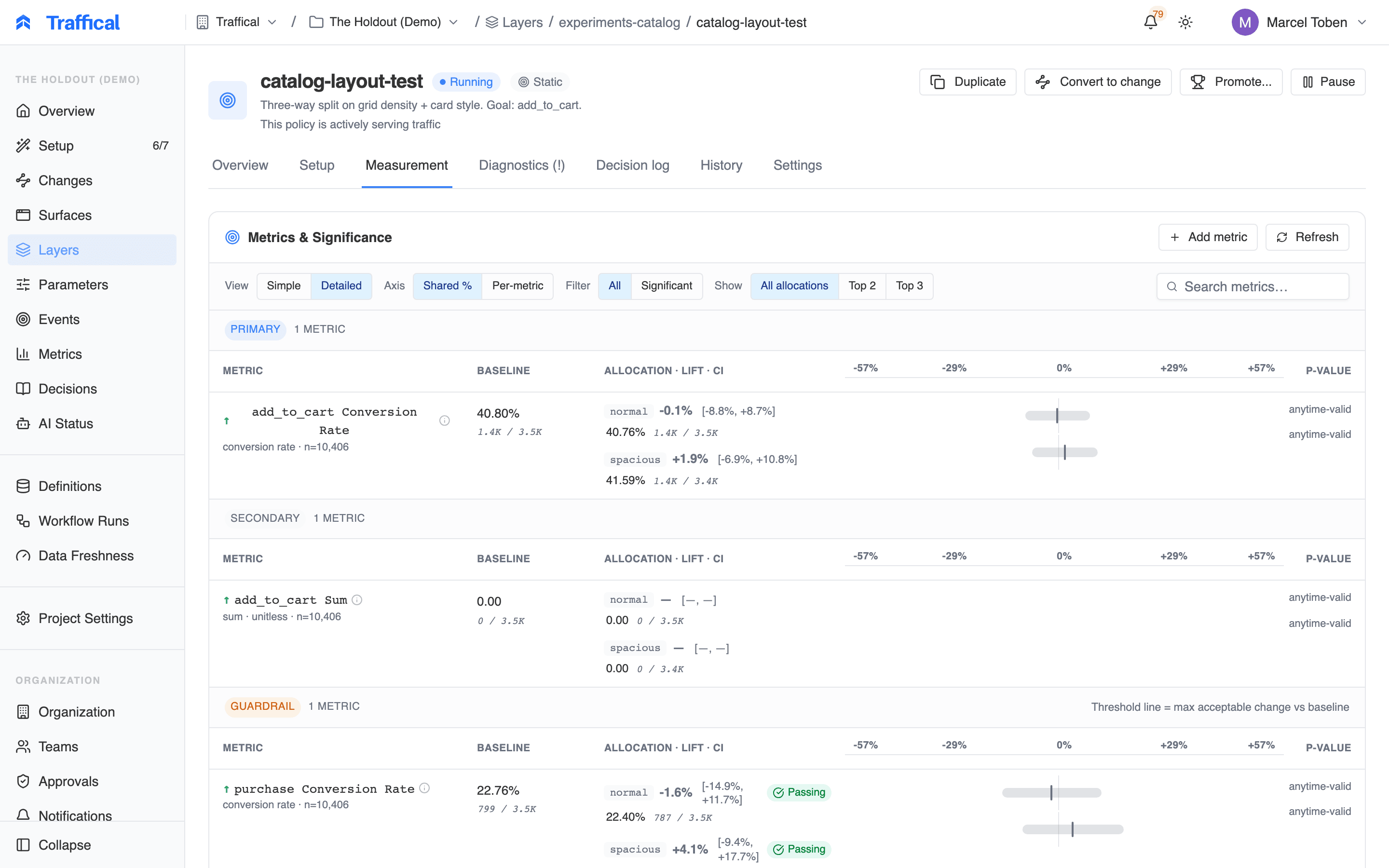
Policy metrics scorecard
The metric detail page

Metric detail
Editing, archiving, and deleting
A metric is editable while it’s neither certified, synced, nor archived — Uncertify makes a certified metric editable again. Two ways to retire one:- Archive hides the metric from the catalog and blocks new attachments while preserving every past policy reference. Archiving is refused while a running or paused policy still uses the metric; unarchive restores it any time.
- Delete is only allowed if the metric has never shipped in a non-draft policy. Once it has, the definition is part of the evidence record for those policies — the server refuses and points you to archive instead.
Next steps
Measurement protocols
Turn certified metrics into reusable measurement rules for changes.
Definitions
Where warehouse-native fact definitions live.
Experiment design
Picking a primary metric and guardrails.
Statistics
Significance, sequential testing, CUPED, and ratio metrics.