

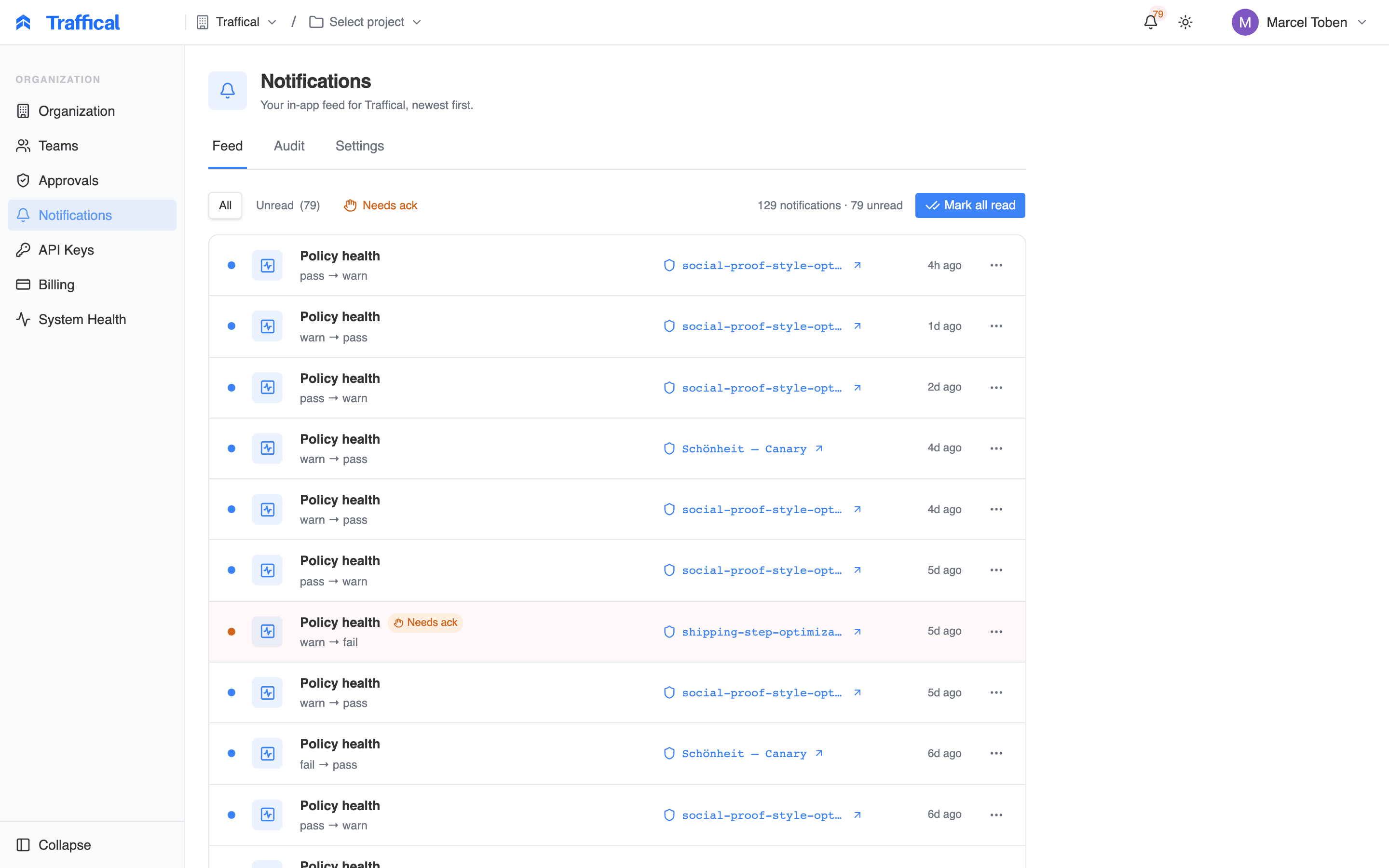
Notifications feed
What generates notifications
Every notification belongs to one of four categories:
Categories are the unit you route and subscribe at — you turn a whole category on or off per channel, or route it to a Slack channel, rather than managing individual event types (though routing rules can go event-type-fine when you want them to).
Two behaviors keep the feed quiet:
- You aren’t notified about your own actions. Editing a policy notifies the other people who care about it, not you.
- Repeats are deduplicated. The same alert firing again within a day doesn’t produce a new notification.
The bell
The bell in the top nav is your quickest read on what’s new. It shows a badge with your unread count (capped at 99+) and refreshes automatically while the tab is open. Click it to see your most recent notifications. From the dropdown you can:- Click a notification to mark it read and jump straight to the object it’s about — the change, policy, metric, or run.
- Acknowledge a critical alert inline.
- Mark all read, or View all to open the full feed.
The feed
The full feed lives on your organization’s Notifications page (in the sidebar’s Organization section), newest first. It’s your feed: each notification is addressed to the people its event concerns — the policy’s creator, the change’s owner, org admins — so what you see is what was sent to you, not everything that happened in the org. Three tabs filter it:- All — everything, with a total and unread count.
- Unread — what you haven’t read yet.
- Needs ack — critical alerts waiting for you to acknowledge them.
Reading vs. acknowledging
These are two different signals:- Read means you’ve seen it. Reading is personal and low-ceremony — clicking a notification, or Mark all read, is enough.
- Acknowledged means you’ve taken responsibility for it. A small set of serious alerts — an event-volume drop, a failed workflow run, anything critical — carries a Needs ack badge and stays highlighted in your feed and bell until you acknowledge it.
Where notifications are delivered
Three channels carry notifications:
Delivery is layered: you control your own email delivery in personal preferences, and org admins mirror categories to shared destinations — a team Slack channel or a mailing list. The two layers are independent; a routing rule never turns off anyone’s personal delivery. Per-person Slack delivery isn’t available yet — Slack messages go to shared destinations only.
Your personal preferences
Open your account settings and go to Notifications to control which channels deliver each category to you.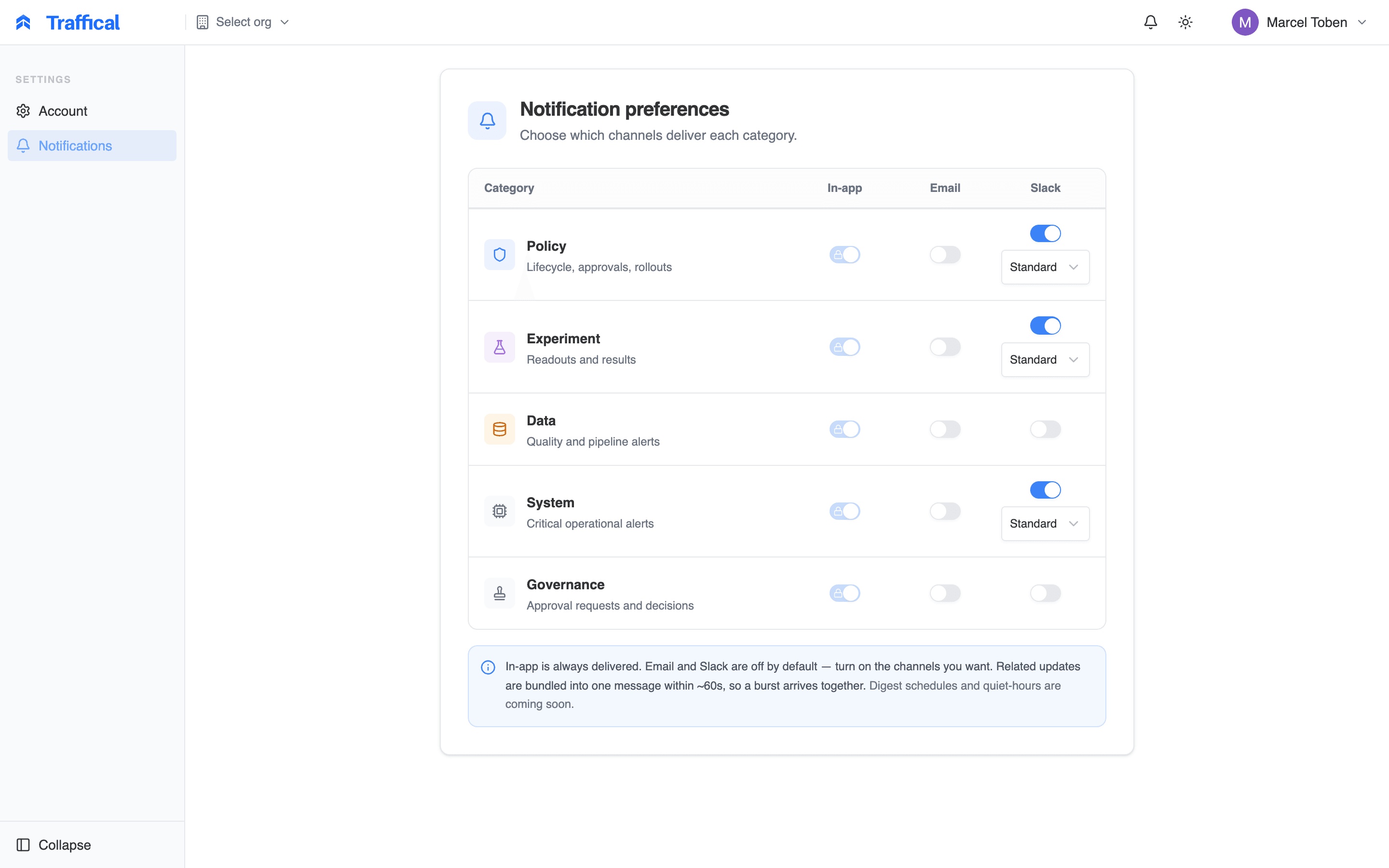
Personal notification preferences
- In-app is locked on. Every notification addressed to you always lands in your feed.
- Email is off by default. Turn on exactly the categories you want in your inbox.
- The Slack column doesn’t deliver yet. Per-person Slack delivery isn’t available; Slack messages reach channels through shared destinations that org admins configure.
Shared destinations and routing rules
Org-wide delivery is configured on the Settings tab of the organization’s Notifications page. The tab is visible to organization admins and owners (it requires thenotifications:manage permission — see roles & permissions).

Shared destinations and routing rules
Shared destinations
A shared destination is a place notifications go that isn’t a person:- A Slack channel — paste a Slack incoming-webhook URL and name the channel (e.g.
#ops-alerts). - An email address — typically a mailing list or shared inbox.
Routing rules
A routing rule mirrors a slice of the org’s notifications to a shared destination. Each rule reads like a sentence: when all categories / one category / a single event type happens, send to a destination. Use the catch-all (All categories) to give an ops channel full visibility, a category rule to send everything experiment-related to the growth team’s channel, or an event-type rule to route just “event volume dropped” to the on-call channel. Rules stack — add as many as you need. Each rule also carries a delivery frequency — Standard, Hourly, or Daily — with the same meaning as in personal preferences.Bundling
Notification delivery is designed to never spam a channel:- Bursts coalesce. When several related events about the same object fire in quick succession — a policy whose health checks flip in a cascade, say — email and Slack delivery at the Standard frequency waits briefly (about a minute) and sends one combined message: a subject naming the object and the update count, one line per event, one link. In-app is exempt: feed entries always appear individually and immediately.
- Scheduled digests collect a period. A preference cell or routing rule set to Hourly or Daily holds its notifications and sends one combined digest shortly after the hour or day closes.
- Critical alerts skip the queue. Anything with critical severity, and everything in the System category, bypasses bundling and is always delivered immediately — even to recipients on an hourly or daily digest. A failed workflow run never waits.
The delivery audit
The Audit tab of the organization’s Notifications page is the delivery log — who received what, when, and on which channel. Like the Settings tab, it’s visible only with thenotifications:manage permission (organization admins and owners).
Each row is one delivery: the recipient (a user or a shared destination), the channel, the event type, the target object (deep-linked), the delivery status, when it went out, and the source — the person, agent, or system process whose action triggered it. Failed deliveries are flagged with the error detail, and bundled rows are grouped so you can see that, say, six health-check events reached Slack as a single message.
Use the audit when someone asks “why didn’t I get that alert?” — you can see whether the notification was generated, where it was sent, and whether the send succeeded. For broader diagnosis, see troubleshooting.
Next steps
Policy health
The health checks behind policy notifications.
Approvals & autonomy
The approval flow that proposed-transition notifications feed.
Changes
Where measurement and lifecycle notifications link to.
Roles & permissions
Who can manage destinations, routing, and the audit log.