

What runs
Every execution appears as a workflow run with a type:Workflow Runs
The Workflow Runs page lists recent executions, newest first, with a duration chart across the top. Filter by type or status, or search by run id.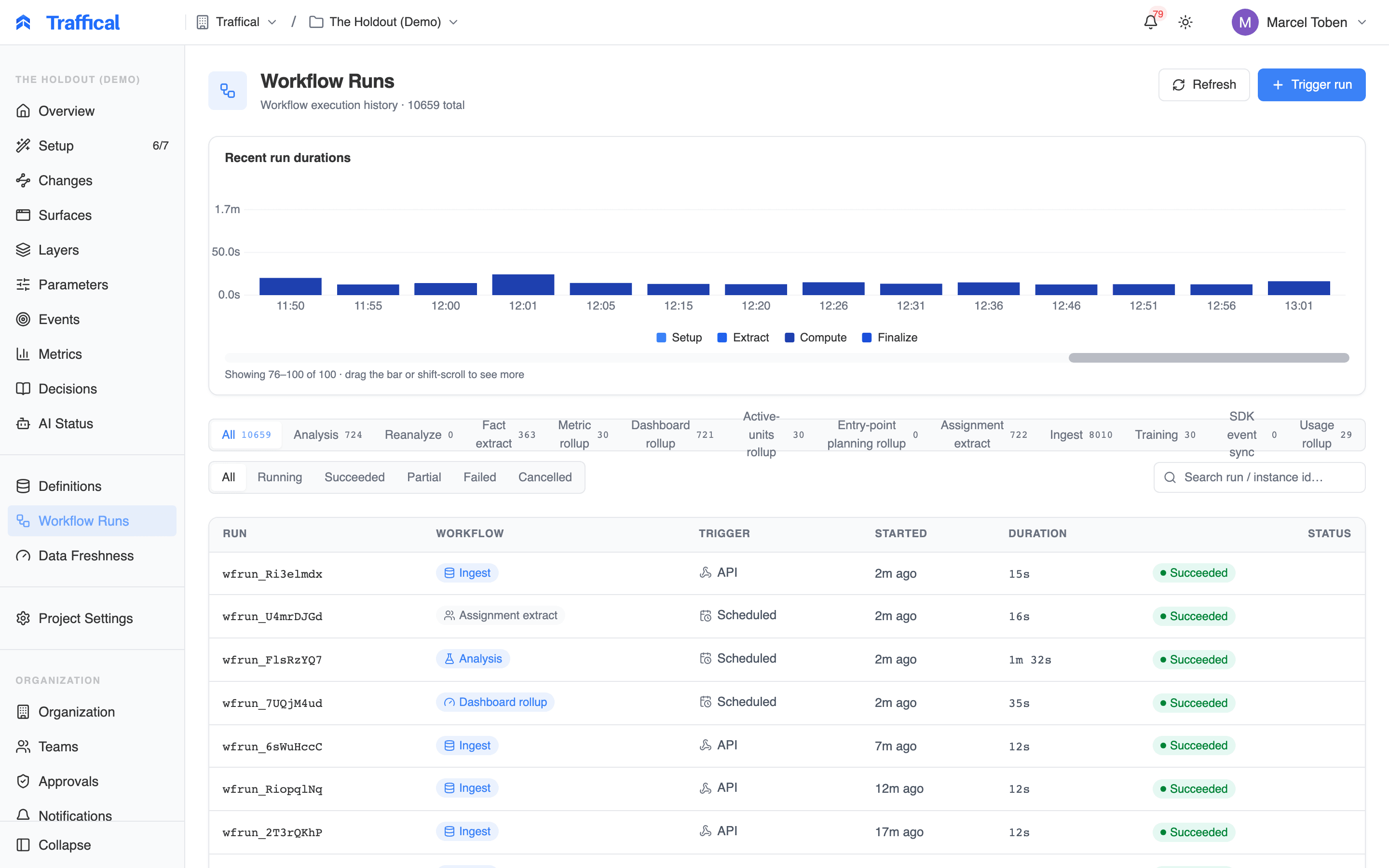
Workflow Runs page
queued/running— in progress; running rows are highlighted (click Refresh to update the list — the run detail page updates live)succeeded— everything completedpartial— some of the run’s work succeeded and some failed; the failures don’t block the restfailed— the run erroredcancelled/terminated— stopped before completing
partial.
Run detail
Click a run to drill in.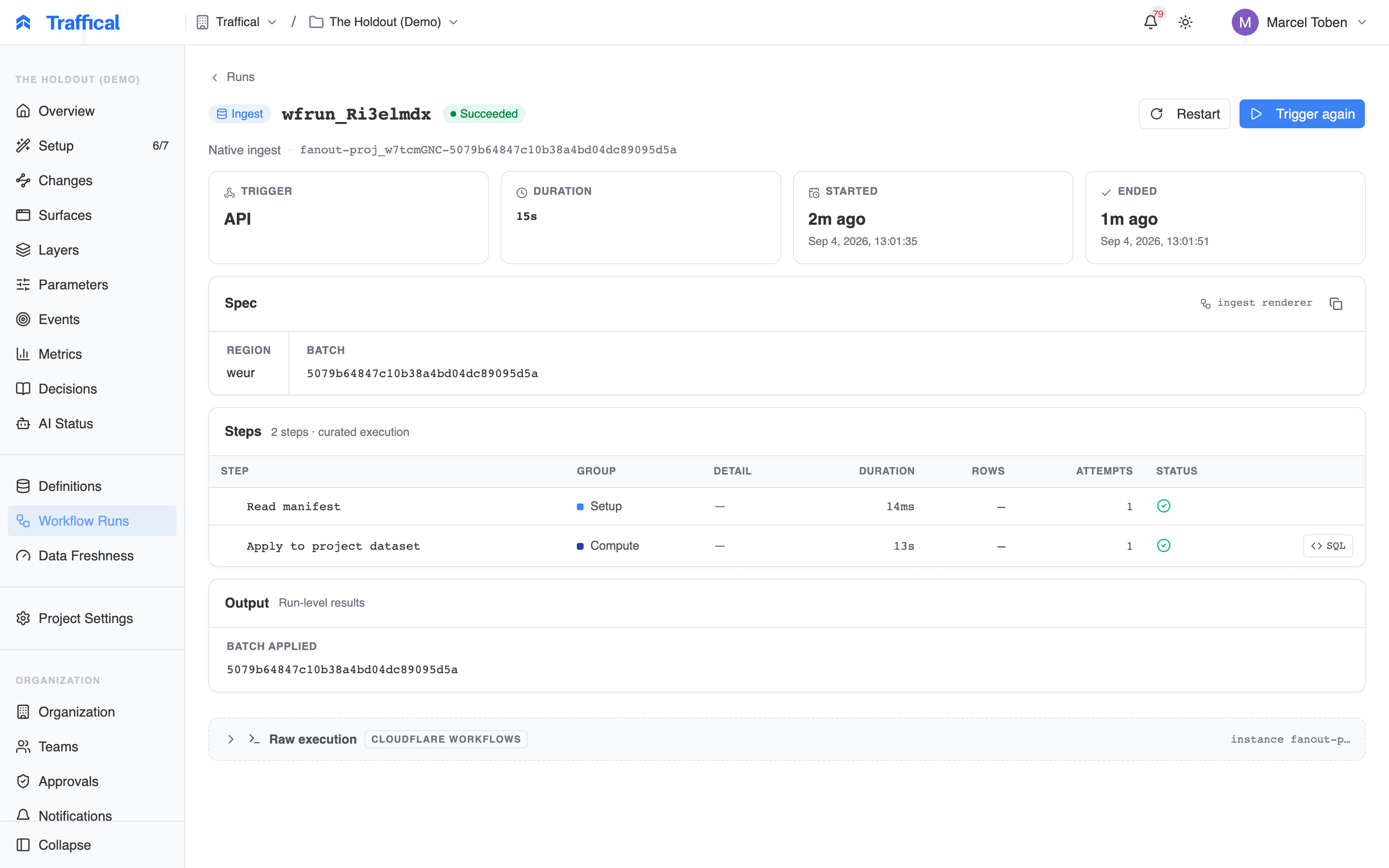
Run detail
- Spec — what the run was asked to do, with links to the policies, metrics, and definitions involved
- Steps — the execution broken into setup, extract, compute, and finalize steps, each with duration, rows processed, attempt count, and status. Sub-steps expand inline; failed steps expand automatically with their error.
- Output — run-level results, again linked to the entities they touched
Restart, terminate, trigger again
From the run detail page:- Terminate stops a running run. In-flight work is abandoned and the run is marked
terminated. - Restart re-runs a finished run from a step you choose — useful when a late step failed and the earlier extraction was fine.
- Trigger again opens the trigger dialog pre-filled with the same workflow type.
Manual runs
Click Trigger run on the Workflow Runs page to start a run by hand. Pick a workflow type; each exposes a small set of options — for example, an analysis run can be lite (headline metrics) or full (all policies and metrics), and analysis and metric rollup offer a Force full rebuild toggle that drops persisted state and recomputes history. SDK sync offers a Full resync toggle instead: it drops the synced tables and re-reads a short lookback rather than all history. Full rebuilds are slow; normal runs are incremental. Manual runs are useful for:- Re-running after fixing a broken definition
- Pulling in late-arriving data after a backfill
- Verifying a freshly saved definition works against real data
Data Freshness
The Data Freshness page shows, per assignment and fact definition, how current the computed data is.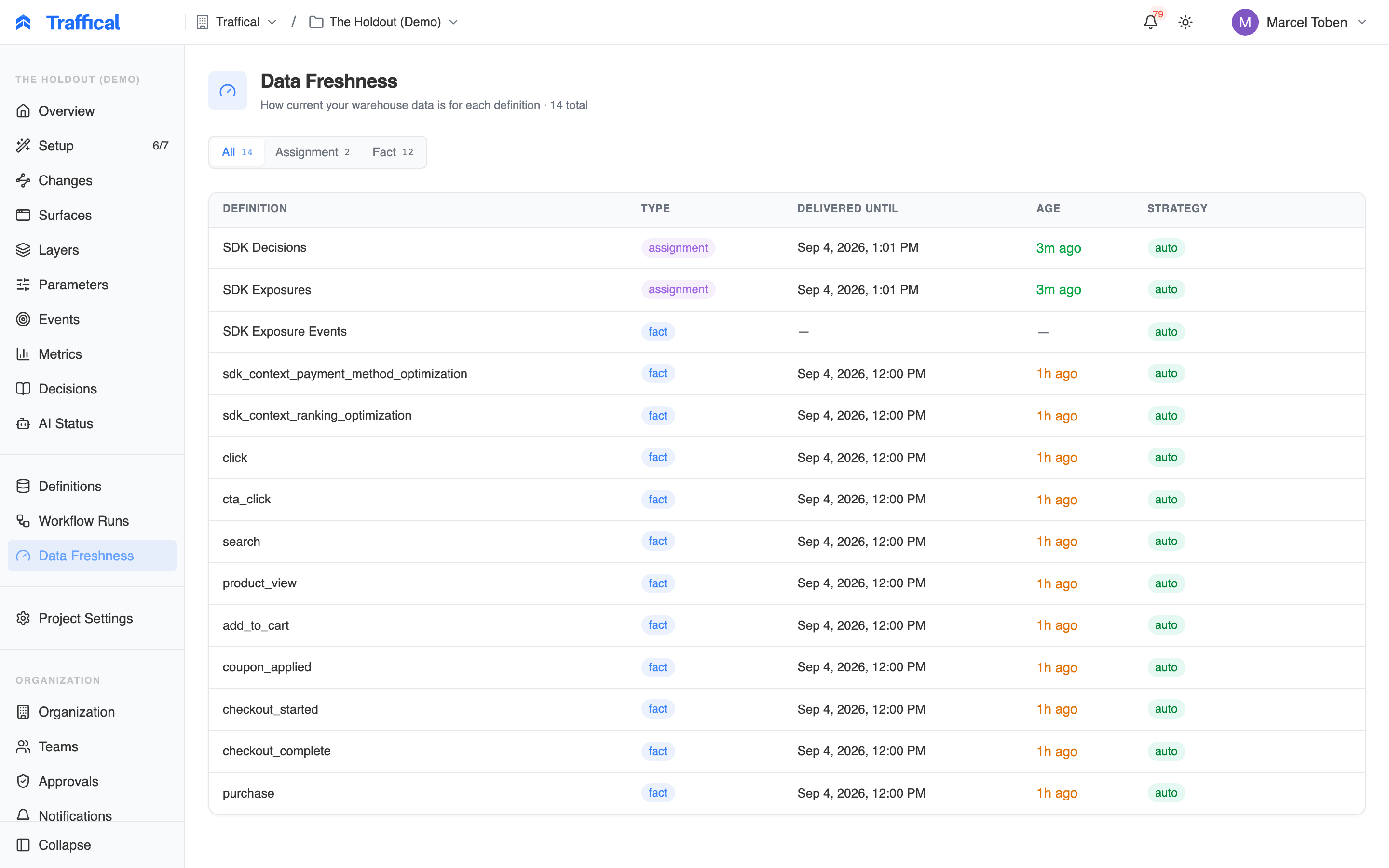
Data Freshness page
- auto — successful analysis runs advance it. If runs fail, the watermark holds where it is; a mark that stops moving is your cue to check Workflow Runs for the failure.
- manual — the mark is set explicitly rather than advanced by runs. Manual marks show a pencil so you can adjust the timestamp yourself.
When numbers lag
If a metric looks stale on the Metrics page or a policy’s measurement progress has stopped advancing:- Check Data Freshness — is the relevant definition’s watermark moving?
- If not, open Workflow Runs filtered to
failed/partialand look at the failing step’s error and rendered SQL. - Common causes: warehouse credential rotated, table renamed in a migration, column changed type.
Scheduling
Each workflow kind has a default cadence:
Adaptive policies get the faster analysis lane by default because the optimizer acts on the results; A/B results only need to be as fresh as your reading of them.
Override any cadence in Settings → Pipeline scheduling (Settings). Longer intervals cut warehouse cost; shorter intervals keep dashboards fresher. One guard applies: the assignment extract feeds analysis and dashboard rollups, so it can’t be scheduled less often than either of them.
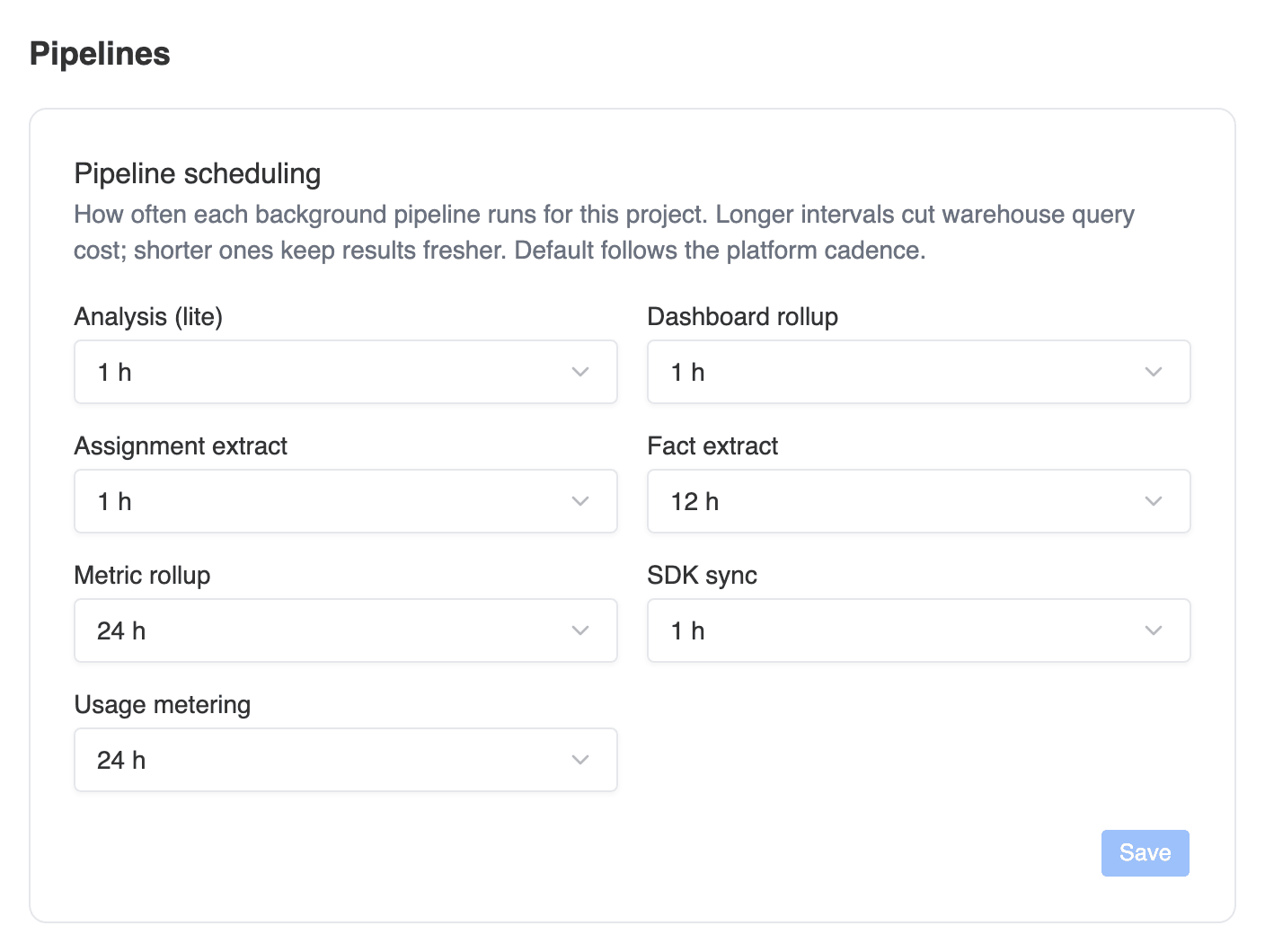
Pipeline scheduling in Settings
Cadence is the main cost lever, but expensive SQL compounds with every run. If a definition is costly, open a recent run’s rendered SQL and check that it filters on your table’s partitioned or clustered time column — a full-table scan every 15 minutes adds up. See Connectors for per-warehouse tuning.
Next steps
Definitions
Where the SQL is authored.
Metrics
What the pipeline ultimately produces.
Settings
Pipeline scheduling and warehouse connection.
Troubleshooting
When something looks wrong.